Create a Service Request
Step-by-step instructions to log inbound (Stock Receipt) and outbound (Stock Delivery) requests in ZLog.
1. Open the Service Request Page
Step 1- Log into ZLog.
- From the sidebar, go to 'Service Request'.
- Click 'Create' to start a new request.
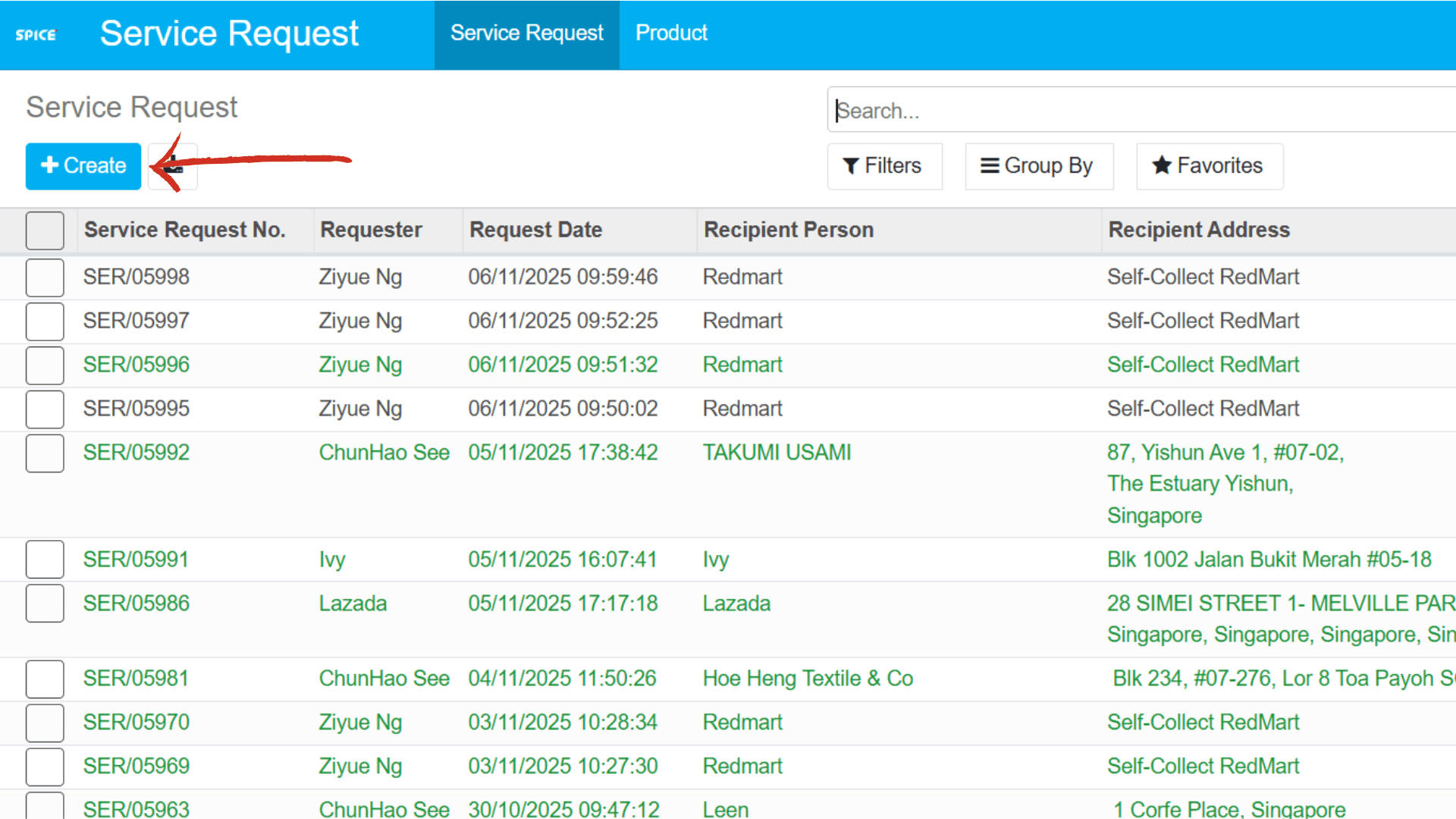
Figure 1. Open the Service Request Page
2. Select Customer & Service Type
Step 2- Choose the Company/Customer for the request.
- Pick Service Type: Stock Receipt (inbound) or Stock Delivery (outbound).
Tip
Stock Receipt = Inbound from customer. Stock Delivery = Deliver items based on request.
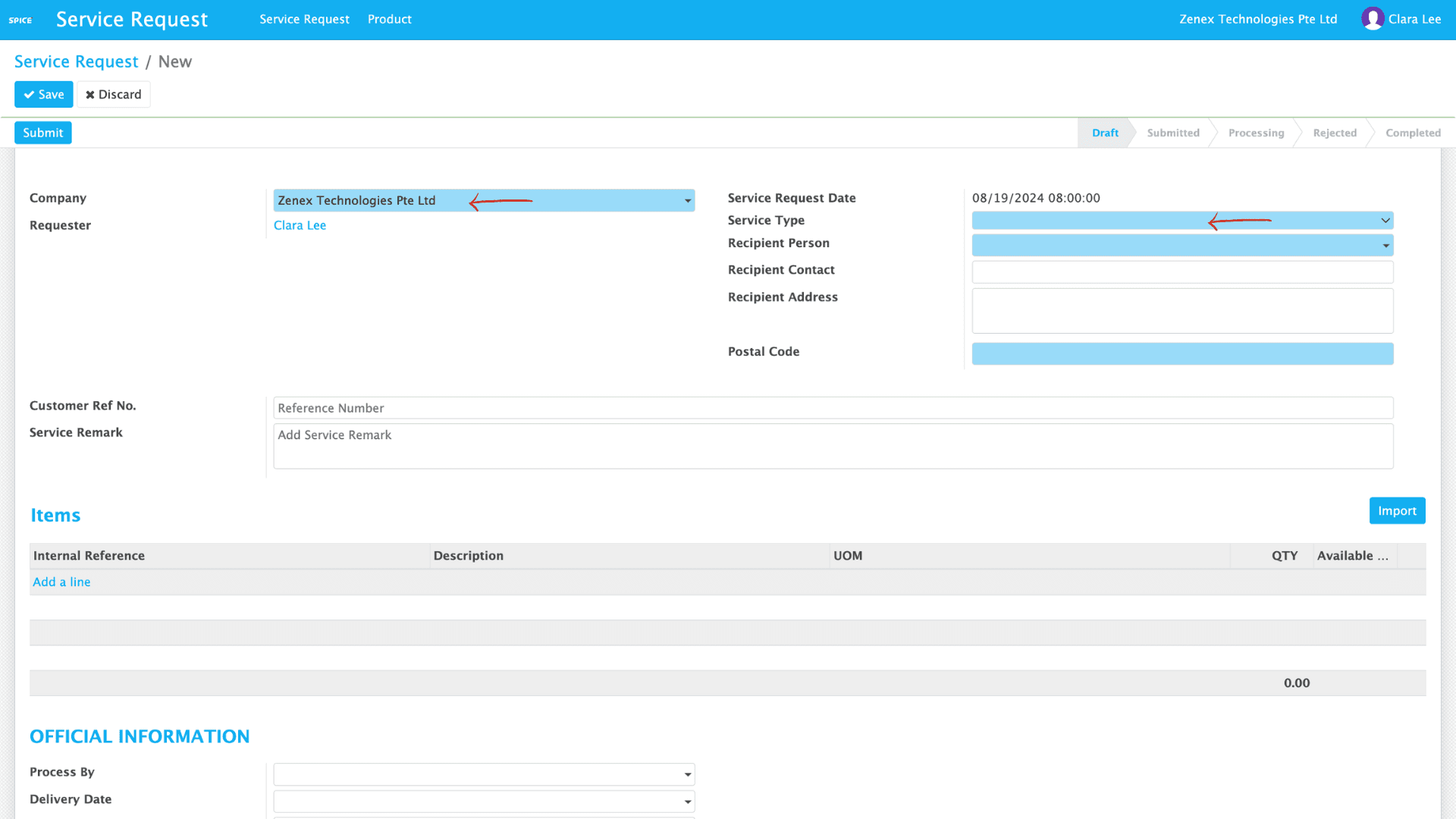
Figure 2. Select Customer & Service Type
3. Enter Recipient & Address Details
Step 3- Recipient Person
- Contact Number
- Address
- Postal Code
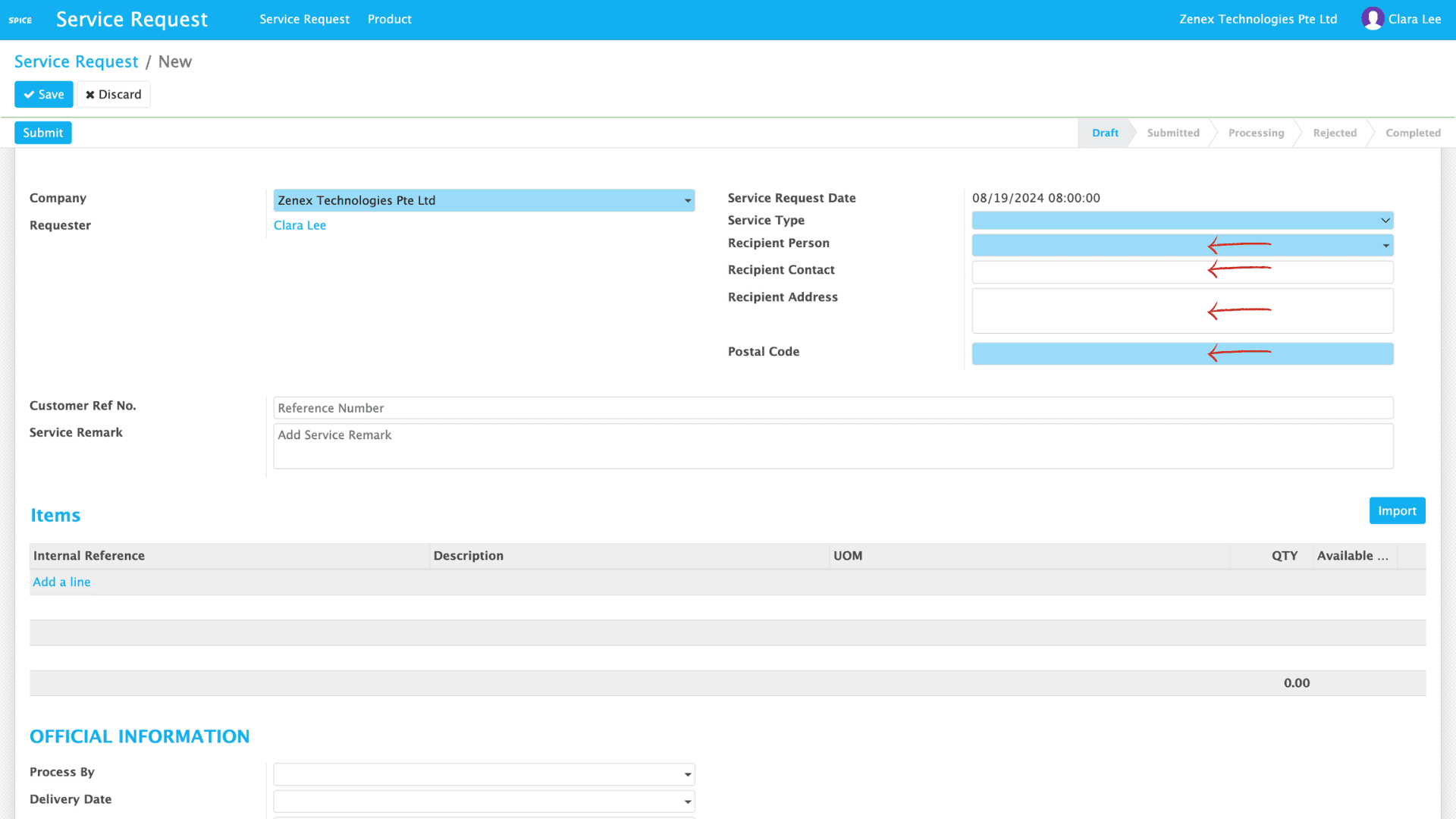
Figure 3. Enter Recipient & Address Details
4. Add Reference Number & Remarks
Step 4- For Stock Delivery: enter customer reference (e.g., PO or order no.) and remarks (e.g., Deliver by 21 Aug, 3 PM).
- For Stock Receipt: use ZLogistics Inbound Reference No. and include quantity notes (e.g., 5 cartons / 2 pallets).
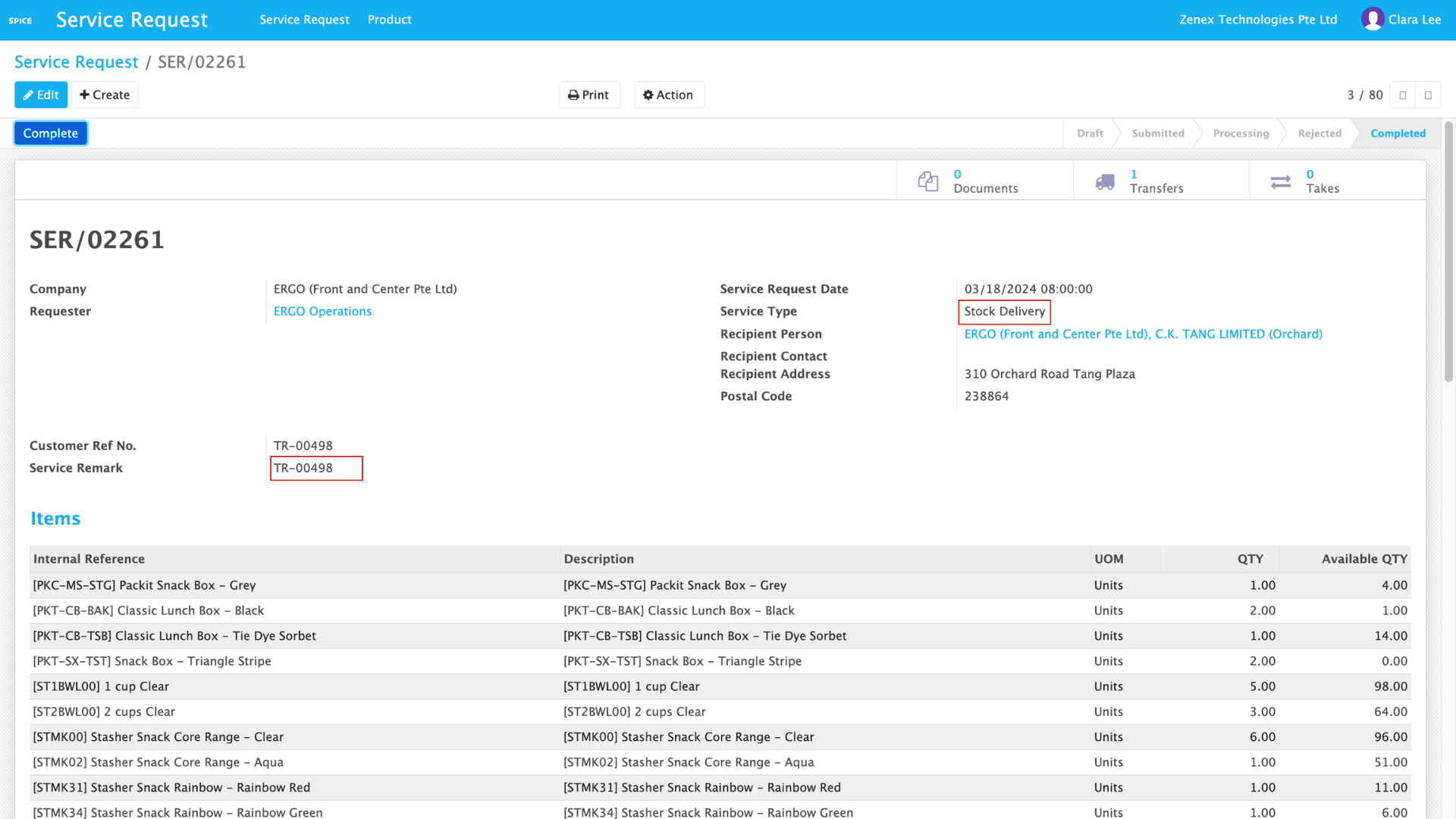
Figure 4. Add Reference Number & Remarks
5. Review & Submit
Step 5- Double-check details for accuracy.
- Click Submit to finalise the Service Request.
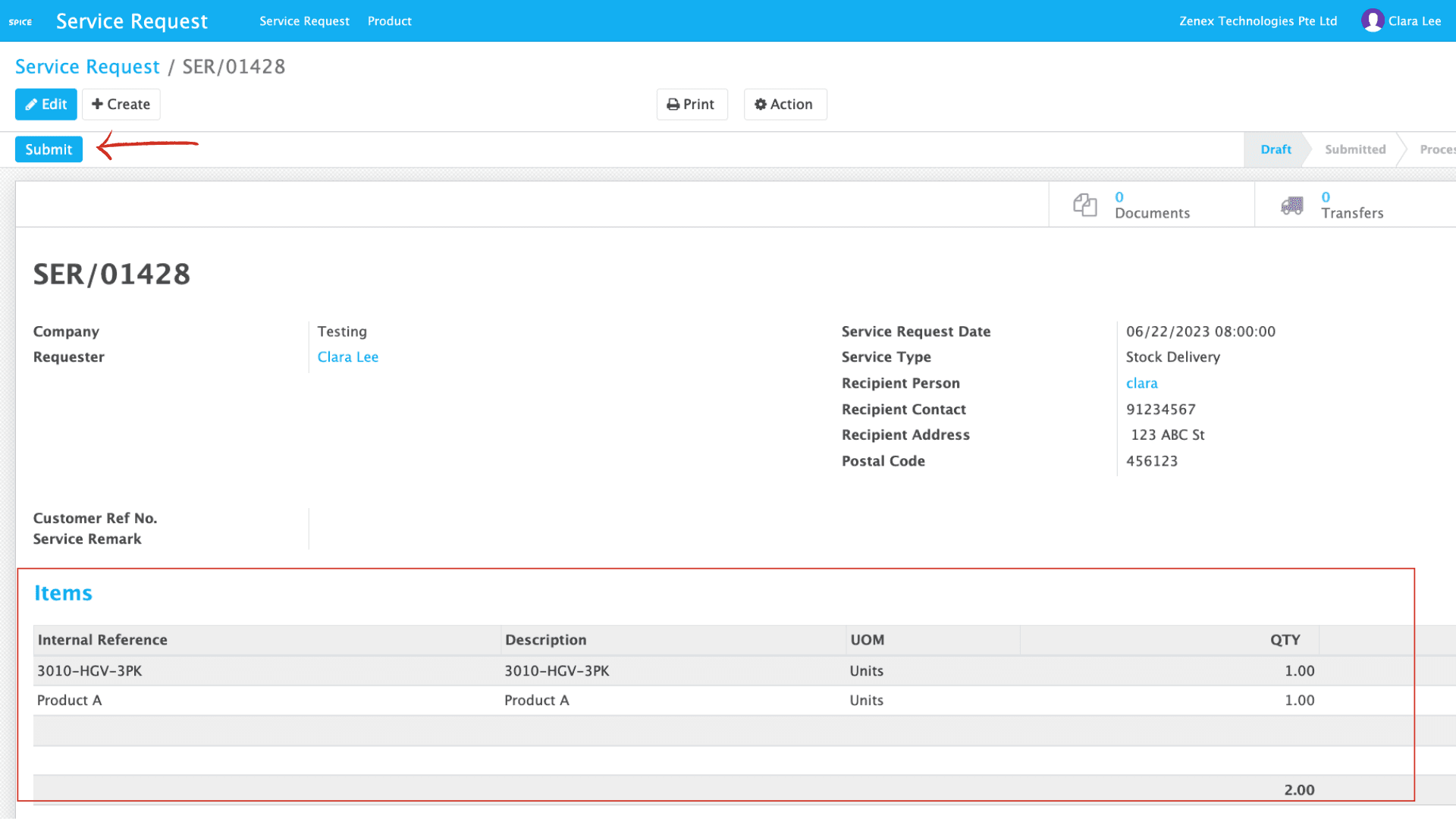
Figure 5. Review & Submit
Video Tutorial — How to Create a Service Request
Watch this short tutorial for a full walkthrough of creating a Service Request in ZLog.
Notes & Reminders
- Use clear remarks for timing and contacts in service remarks (e.g. “Urgent — deliver within 3 work days”).
- If an item is out of stock, inform our staff before submitting.